Review flagged transactions
Related information
 Related topics
After GL Outlier Detection is configured and running, transactions submitted for approval go through GL Outlier Detection for evaluation.
| Subscription | AI/Machine Learning General Ledger |
|---|---|
| Regional availability | All regions |
| User type | Business |
| Permissions | Approve journal entries: List Journal entries: View, List, Add, Edit |
| Prerequisites | GL Outlier Detection configured and indexed. Optionally, Outlier Assistant is enabled. |
The evaluation process runs in the background and approvers can see the Outlier column in the List view.
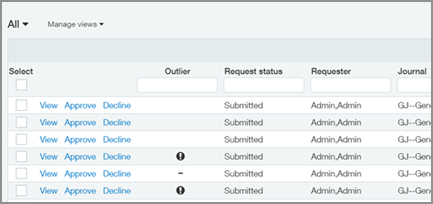
List-level icons
The Outlier column shows the state of outlier detection:
- Empty ( ): The transaction has not been evaluated yet, even though it’s been submitted. Evaluation can take a while after submission.
- An exclamation mark (Outlier exclamation): At least one line entry in the transaction is an outlier.
- A dash (Nonoutlier dash): No outliers have been detected in the transaction based on your historical data and the model.
Line-level icons
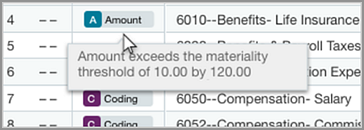
When reviewing the transaction details, icons on individual transaction lines indicate whether an outlier is flagged as a coding anomaly, an amount anomaly, or multiple anomalies. This makes it easier to pinpoint which item to look for in the submission.
Move your mouse over the icon to see more information. Icons include the following:
 Coding outlier: the account-dimension, dimension-dimension, or account-journal relationship is an outlier.
 Amount outlier: the amount-journal relationship is an outlier.
 Multiple outliers: there are at least 2 types of outliers.
What to look for when a transaction is flagged
Outlier detection flags irregular amounts and unusual combinations of the following dimensions:
Account
Department
Location
Vendor
Class
Project (if subscribed to Projects)
When you see that a transaction has an outlier, review the transaction details. If a transaction contains an outlier, you'll see the following indicators:
- A notification appears at the top of a transaction.
- The Outlier column in the entries table indicates the outlier entry.
To see details about an outlier, move your mouse over the outlier icon.
The next step is yours
GL Outlier Detection provides an additional data point as you make approval decisions. You can approve, manually correct, or decline the transaction.
The action that you take on the transaction is included when the data model is refined. This information enables ongoing improvement to the data model.
GL Outlier Detection is a helpful tool when approving entries, but it is not a substitute decision maker. No tool—not even AI—is foolproof.
Even if a submission is not flagged as an outlier, review that transaction before approving or declining it. The ultimate decision on which action to take belongs to the approver.
If you’re using Outlier Assistant
If Outlier Assistant is enabled, entries flagged as outliers are sent back to the submitter instead of being sent to the Approver.
In this case, the submitter initially determines if changes are needed to the entry, or they can send it to the Approver as is.
After the submitter updates the entry or determines that it’s correct, it’s sent on to the Approver as usual.
